

IR Seeker Video Lesson #1
QikEasy IR Seeker now fully supports Word Block for Spike 2 & 3, Python for Spike 2 & 3, and Python for Pybricks on Spike Prime.
This video provides a basic tutorial on how to use QikEasy IR Seeker.
Here’s the Word Block program for the first part of the tutorial (for both Spike App 2 and Spike App 3):
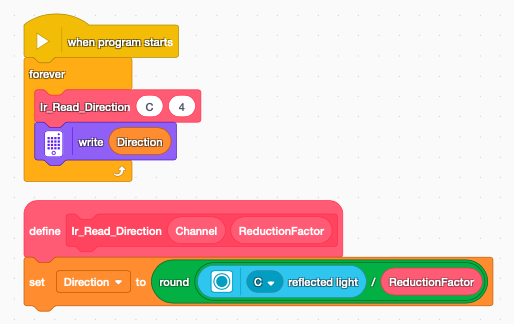
Here’s the Python code for part 1 of the tutorial (for both Spike App 2 and Spike App 3):
from hub import light_matrix, port
import runloop
import color_sensor

# IR Seeker Read Function
def IrReadDirection(Channel):
    return round(color_sensor.reflection(Channel) // 4)

# MAIN PROGRAM
async def main():
    while (1):
        Direction = IrReadDirection(port.C)
        light_matrix.write(str(Direction))
        await runloop.sleep_ms(200)

runloop.run(main())
Here’s the Pybricks’ Python code for part 1 of the tutorial (for Pybricks Python on Spike Prime):
from pybricks.hubs import PrimeHub
from pybricks.iodevices import PUPDevice
from pybricks.parameters import Port
from pybricks.tools import wait
# Initialize the Hub and the Sensor as a low-level hardware device
hub = PrimeHub()
sensor = PUPDevice(Port.C)
# Hardware Mode for Reflection value
RAW_REFLECTION_MODE = 1
# IR Seeker Read Function using low-level mode
def IrReadDirection():
    # Read the data array from hardware Mode 1
    data_list = sensor.read(RAW_REFLECTION_MODE)

    # Extract the first number from the data list
    raw_value = data_list[0]

    # Run your original math formula on the raw value
    return round(raw_value // 4)
# MAIN PROGRAM
while True:
    Direction = IrReadDirection()

    # Display the direction value on the Hub screen
    hub.display.text(str(Direction))
Here’s the Word Block program for the second part of the tutorial (for Spike App 3):
<< For Spike App 2, remember to change the reduction factor value from 4 to 1. >>
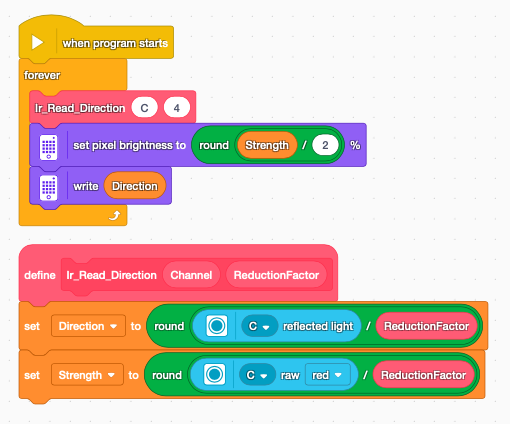
Here’s the Python code for part 2 of the tutorial (for Spike App 3):
<< For Spike App 2, remember to change the reduction factor value from 4 to 1. >>
from hub import light_matrix, port
import runloop
import color_sensor

# IR Seeker Read Function
def IrReadDirection(Channel, ReductionFactor):
    rgb = color_sensor.rgbi(Channel)
    # note that rgb[0] is the raw red value
    return round(color_sensor.reflection(Channel) // 4), round(rgb[0]//ReductionFactor)

# MAIN PROGRAM
async def main():
    while (1):
        Direction_n_Strength = IrReadDirection(port.C, 4)
        Strength = Direction_n_Strength[1]//2
        if Strength>100:
            Strength = 100
        light_matrix.write(str(Direction_n_Strength[0]), Strength)
        await runloop.sleep_ms(200)

runloop.run(main())
Because Pybricks Python doesn’t support display text on the LED Matrix with different brightness, we will instead print the brightness value to the Python console instead. Here’s the code for part 2 of the tutorial (for Pybricks Python on Spike Prime):
from pybricks.hubs import PrimeHub
from pybricks.parameters import Port
from pybricks.iodevices import PUPDevice
from pybricks.tools import wait
# Initialize the Hub and the IR Seeker
hub = PrimeHub()
ir_seeker = PUPDevice(Port.C)
# Mode constants for the LEGO Color Sensor
MODE_REFLECTION_RAW = 1
MODE_RGB_RAW = 5
# IR Seeker Read Function
def IrReadDirection(reduction_factor):
# Read direction data from Mode 1
# pybricks read() returns a tuple; we grab the first element
direction_data = ir_seeker.read(MODE_REFLECTION_RAW)
direction = direction_data[0]

# Read signal strength data from Mode 5
strength_data = ir_seeker.read(MODE_RGB_RAW)
rgb_0 = strength_data[0]

# Process calculations using the raw mode values
processed_direction = round(direction // 4)
processed_strength = round(rgb_0 // reduction_factor)

return processed_direction, processed_strength
# MAIN PROGRAM
while True:
# Read data from Port C using your exact logic
direction_n_strength = IrReadDirection(4)

strength = direction_n_strength[1] // 2
if strength >100:
strength = 100

# Display the direction number on the Hub’s grid
hub.display.text(str(direction_n_strength[0]))
print(“Brightness = “, strength)