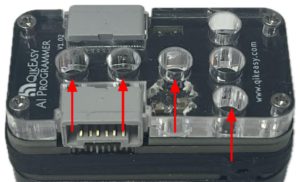
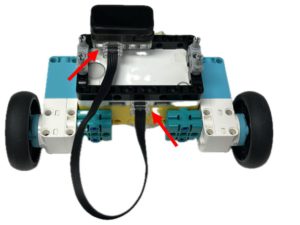
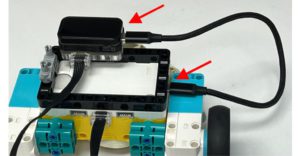
Mount the QikEasy device on your robot while the LEGO hub is off.
The QikEasy AI Programmer features LEGO-compatible mounting holes (on its back), allowing you to attach it anywhere on your LEGO robot.
Connect the provided WeDo 2.0 cable.
Connect the provided short USB cable.
Turn on your LEGO SPIKE Prime Hub.
Connect QikEasy AI Programmer to your Wi-Fi Network
To use QikEasy AI Programmer, you must connect it to the same Wi-Fi network as the smartphone or desktop computer that you will use to command AI later.
Turn On your Spike Prime hub, which will turn on the QikEasy AI device.
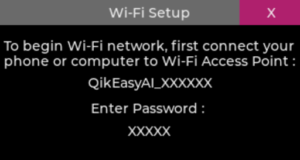
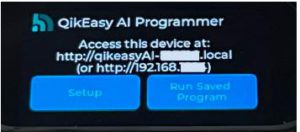
Connect a smartphone or a desktop Computer to the Wi-Fi Access Point as indicated on QikEasy device LCD display.
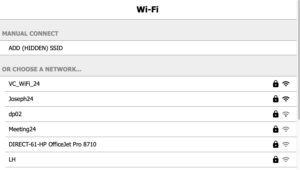
After connected to theAccess Point, on your browser, select your local Wi-Fi network name and Enter the SSID Password.
After logging into your local Wi-Fi network successfully for the QikEasy device, make sure your smartphone or desktop computer’s Wi-Fi is connected back to your local Wi-Fi network (instead of the QikEasy device Access Point)
On your smartphone or desktop computer’s browser, go to the QikEasy AI Programmer’s web address displayed on the QikEasy device LCD screen.
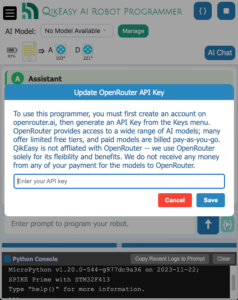
You should see a web page like this:
Congratulations! You have successfully connected to the QikEasy AI Programmer app.
Setup your OpenRouter AI account
Our product uses OpenRouter as the AI provider. It provides over 300 AI models including all the most popular AI models.
There are paid for and free AI models. Since we are not affiliated with Open Router, we will receive no benefit from the fees you pay them at all.
Please follow the instructions on the video on top to create an account and an API key.
Make sure you save the API key securely.
Enter your OpenRouter API Key into the QikEasy AI Programmer app
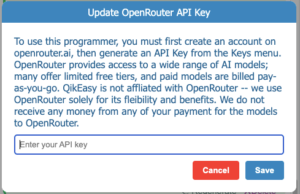
Go back to the QikEasy AI Programmer web page, which should show the prompt for entering the OpenRouter API Key. If the API Key dialog is not shown, you may access it again through the burger menu on the upper left corner, and select “OpenRouter API Key” in this menu.
Copy and paste the OpenRouter API key into this field, and click Save.
Select an AI Model for Generating Python Code
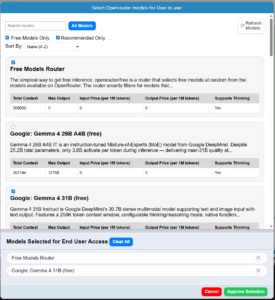
QikEasy AI Programmer allows the user to choose from a range of different AI models to general code for the Spike Prime robot.
User may set his or her AI model by following this steps:
Click the “Manage” button.
Select multiple AI models as you wish.
Click the “Approve Selection” button to save your selections.
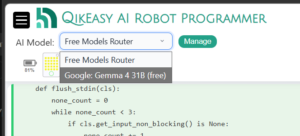
Back to the main screen, select the AI model for generating. your Python code.